
Get UiPath UiPath-ADPv1 Dumps Questions Study Exam Guide Dec 06, 2025
UiPath-ADPv1 Premium Exam Engine - Download Free PDF Questions
NEW QUESTION # 24
Given the following conditional breakpoint with count = 0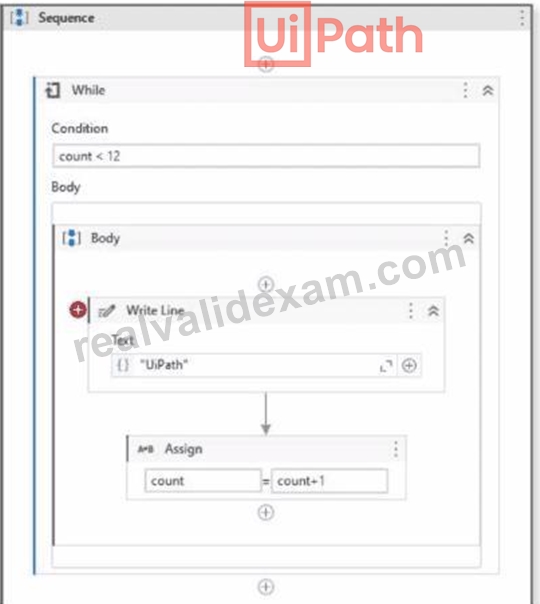
Conditional breakpoint settings: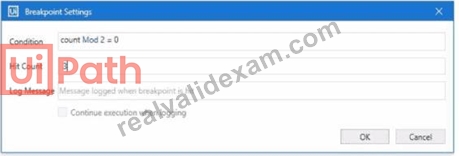
How many limes will UiPath be displayed in the Output panel before the process goes into a Paused state in Debug mode?
- A. 0
- B. 1
- C. 2
- D. 3
Answer: C
NEW QUESTION # 25
You need to create a process where multiple events happen at the same time, and triggers must handle these events simultaneously in an attended automation.
How can you set up this parallel execution of triggers?
- A. Use the Trigger Scope activity to handle all events in a sequential manner rather than parallel.
- B. Use the Enable Local Trigger activity to run all triggers at the same time once they are enabled.
- C. Rely on the Form Builder to set up multiple events and manage their execution based on user input.
- D. Use the Run Local Triggers activity to manage the simultaneous execution of multiple triggers within the project.
Answer: D
Explanation:
To allowparallel execution of multiple local triggers, UiPath provides theRun Local Triggersactivity. It monitors all defined triggerssimultaneouslyand allows the automation toreact to whichever is activated first, supporting more dynamic and responsive attended automation solutions.
Reference:UiPath Activities Guide > Triggers > Run Local Triggers
NEW QUESTION # 26
A developer implemented a process using the REFramework and an Orchestrator queue. The
"OrchestratorQueueFolder" was defined in the "Config.xlsx" file, but the folder does not exist in Orchestrator What is the behavior at runtime?
- A. No exception is thrown and neither will a message be logged and the process continues.
- B. The process throws an exception in the "Process Transaction" state because the queue folder is not found, and then the process is stopped.
- C. A warning message stating that the queue folder is missing is logged, and then the process continues.
- D. The process throws an exception in the "Get Transaction Data" state because the queue folder is not found, and then the process is stopped.
Answer: D
Explanation:
The REFramework (Robotic Enterprise Framework) is a template that provides a standard structure and best practices for building automation projects using UiPath Studio1. It uses the State Machine workflow type to handle different scenarios and exceptions in a robust and scalable way2. One of the states in the REFramework is the Get Transaction Data state, which is responsible for fetching the next transaction item from the Orchestrator queue and assigning it to a variable3. The Orchestrator queue is a data structure that stores multiple items that need to be processed by the robots4. The queue can be organized into folders, which are logical containers that help group and manage the queues and other Orchestrator entities5.
If a developer implemented a process using the REFramework and an Orchestrator queue, they need to specify the name of the queue and the folder where it is located in the Config.xlsx file, which is an Excel workbook that stores the configuration settings and constants for the project6. The name of the queue should be entered in the Settings sheet, under the OrchestratorQueueName key, and the name of the folder should be entered in the Constants sheet, under the OrchestratorQueueFolder key6. These values are then read by the InitAllSettings workflow, which is invoked in the Init state of the REFramework, and assigned to the in_Config argument, which is a dictionary that holds all the configuration data7.
At runtime, the Get Transaction Data state invokes the GetTransactionData workflow, which takes the in_Config argument as an input and uses it to get the queue item from the Orchestrator queue8. The workflow uses the Get Queue Items activity, which requires the QueueName and FolderPath properties to be specified9. The QueueName property is set to in_Config("OrchestratorQueueName").ToString, and the FolderPath property is set to in_Config("OrchestratorQueueFolder").ToString8. If the folder specified in the Config.xlsx file does not exist in Orchestrator, the Get Queue Items activity will throw an exception with the message "Folder does not exist" and the process will be stopped10. Therefore, the correct answer is B. The process throws an exception in the "Get Transaction Data" state because the queue folder is not found, and then the process is stopped.
The other options are incorrect because:
* Option A is incorrect because the process will not continue if the queue folder is missing. The Get Queue Items activity will fail and the exception will be caught by the Try Catch block in the GetTransactionData workflow, which will set the out_TransactionItem argument to Nothing and the out_TransactionID argument to "No more data"8. This will cause the transition condition from the Get Transaction Data state to the Process Transaction state to evaluate to False, and the transition condition from the Get Transaction Data state to the End Process state to evaluate to True3. The End Process state will invoke the SetTransactionStatus workflow, which will log the exception message and the process will be stopped11.
* Option C is incorrect because an exception will be thrown and a message will be logged if the queue folder is missing. The exception will be thrown by the Get Queue Items activity, as explained above, and the message will be logged by the SetTransactionStatus workflow, which uses the Log Message activity to write the exception message to the Output panel and the Orchestrator logs11.
* Option D is incorrect because the process will not reach the Process Transaction state if the queue folder is missing. The Process Transaction state is responsible for executing the business logic for each transaction item and invoking the SetTransactionStatus workflow to update the status of the item in the Orchestrator queue12. However, if the queue folder is missing, the Get Queue Items activity will throw an exception and the out_TransactionItem argument will be set to Nothing, which will prevent the transition from the Get Transaction Data state to the Process Transaction state83.
References:
* Studio - Robotic Enterprise Framework Template - UiPath Documentation Portal
* Studio - State Machines - UiPath Documentation Portal
* Studio - REFramework - UiPath Documentation Portal
* Orchestrator - Queues - UiPath Documentation Portal
* Orchestrator - Folders - UiPath Documentation Portal
* Studio - Config File - UiPath Documentation Portal
* Studio - InitAllSettings - UiPath Documentation Portal
* Studio - GetTransactionData - UiPath Documentation Portal
* Activities - Get Queue Items - UiPath Documentation Portal
* Orchestrator - Troubleshooting - UiPath Documentation Portal
* Studio - SetTransactionStatus - UiPath Documentation Portal
* Studio - Process Transaction - UiPath Documentation Portal
NEW QUESTION # 27
Which activity Is specific tor Ul synchronization in UlPath Studio?
- A. Process Start Trigger
- B. Check App State
- C. Get Processes
- D. Use Applicationy/Browser
Answer: B
Explanation:
The Check App State activity is specifically designed for UI synchronization. It checks the state of a UI element, ensuring that subsequent actions are performed when the UI element is in the desired state.
NEW QUESTION # 28
What is the purpose of The Relative To feature in Computer Vision activities?
- A. To configure the target as being relative to an element, either a single point or an area selection in the application.
- B. To synchronize the timing of multiple Computer Vision activities in the same project.
- C. To create a fixed relationship between Computer Vision actions and Ul element positions.
- D. To compare the size and position of Ul elements in different applications.
Answer: A
Explanation:
The Relative To feature in Computer Vision activities is used to configure the target as being relative to an element, either a single point or an area selection in the application. This feature enhances the accuracy and reliability of UI automation.
NEW QUESTION # 29
What is the purpose of the Invoke Code activity in UiPath?
- A. Invokes VB MET code optionally passing it a list of input arguments
- B. Invokes VB MET or Java code optionally passing it a list of input arguments
- C. Invokes Java code, optionally passing it a list of input arguments.
- D. Invokes VB.NET or C# code, optionally passing il a list of input arguments.
Answer: D
Explanation:
The purpose of the Invoke Code activity in UiPath is to invoke VB.NET or C# code, optionally passing it a list of input arguments. The Invoke Code activity allows the developer to write and execute custom code in VB.NET or C# within a UiPath workflow. The Invoke Code activity has a Code property, where the developer can enter the code to be executed. The Invoke Code activity also has an Arguments property, where the developer can specify the input and output arguments for the code. The Invoke Code activity can be useful for performing complex calculations, manipulating data, or integrating with external libraries or applications that are not supported by the existing UiPath activities. References: [Invoke Code]
NEW QUESTION # 30
Consider testing a workflow that computes the sum of two numbers having the data driven test data from the Excel file below: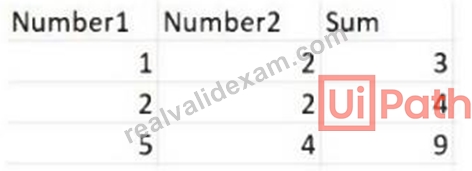
Expanding the functionality of the workflow to compute the sum of three numbers, the data needs to be updated as well to accommodate the new scenario: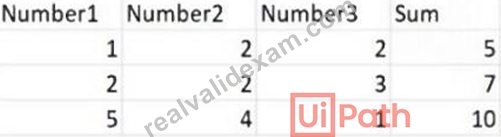
What are steps to do that?
- A. Click Right on the Test Case and select Remove Test Data.
- B. Click Right on the Test Case and select Add Test Data.
- C. Click Right on the Test Case and select Update Test Data
- D. Click Right on the Test Case and select Refresh Test Data
Answer: D
Explanation:
When expanding the functionality of a workflow to compute the sum of three numbers instead of two, and having to update the test data in an Excel file accordingly, you would generally need to:
* Open the Excel file that contains the test data.
* Add a new column for the third number (e.g., Number3).
* Fill in the data for the new column with the appropriate values for the test cases.
* Save the Excel file with the updated data.
* Refresh or update the data source in the test case to reflect these changes.
This is because "Refresh Test Data" suggests that the test case will re-import or re-read the test data from its source, which in this case is the updated Excel file with the additional Number3 column. "Update Test Data" might also seem appropriate, but it typically refers to a scenario where you need to update the test case's reference to the data, not the structure of the data itself. "Add Test Data" and "Remove Test Data" are not appropriate as they imply adding a new data set or removing an existing one, rather than refreshing or updating the existing data set with the new column.
NEW QUESTION # 31
In an RPA Testing project, you created the mock "MySequencemock" for the file "MySequence". You have to update "MySequence" and add a Log Message activity and a Verify Expression activity.
What will happen to "MySequencemock" file when you save the project, assuming that the file is closed?
- A. Only the Log Message activity will be added to the mock file.
- B. The changes made in "MySequence" workflow file are applied to the mock file.
- C. Only the Verify Expression activity will be added to the mock file.
- D. The changes made in "MySequence" workflow file are not applied to the mock file.
Answer: B
Explanation:
A mock file is a copy of a workflow file that is used for testing purposes, where some activities are replaced by mock activities that simulate the expected behavior1. A mock file can be created by selecting Mock workflow under test in the Create Test Case window2. The mock file is stored in the Project > Mocks folder, and it has the same name as the original workflow file, with the suffix "_mock" added2. For example, if the original workflow file is named "MySequence.xaml", the mock file will be named "MySequence_mock.
xaml".
When a mock file is created, the changes made in the original workflow file are automatically applied to the mock file when the project is saved2. This means that any new activities or modifications in the original workflow file are reflected in the mock file, except for the activities that are surrounded by mock activities2.
The mock activities are not affected by the changes in the original workflow file, and they can only be edited within the mock file2.
Therefore, if you update "MySequence" and add a Log Message activity and a Verify Expression activity, and then save the project, the changes will be applied to the mock file, assuming that the file is closed. This means that the mock file will also have the Log Message activity and the Verify Expression activity added, unless they are inside a mock activity
NEW QUESTION # 32
What are the four job types present in the Job Type field according to the place of execution and robot impersonation?
- A. Orchestrator unattended, Personal remote, User attended, Studio.
- B. Service unattended, User remote. Attended, Debugging.
- C. Service unattended. Personal remote, Attended. Development.
- D. Foreground unattended, Background unattended. Attended, Development.
Answer: D
Explanation:
In UiPath, the four job types according to the place of execution and robot impersonation are Foreground unattended, Background unattended, Attended, and Development. These job types differentiate the automation tasks based on whether they require user interaction (Attended), can run in the background without user intervention (Background unattended), are designed for development and testing purposes (Development), or are unattended tasks that require a virtual environment (Foreground unattended).
References:
* UiPath Orchestrator Guide: Job Types
NEW QUESTION # 33
Which logging level includes the following information by default?
1. Execution Started log entry - generated every time a process is started.
2. Execution Ended log entry - generated every time a process is finalized.
3. Transaction Started log entry - generated every time a transaction item is obtained by the robot from Orchestrator.
4. Transaction Ended log entry - generated every time the robot sets the transaction status to either Success or Failed.
5. Activity Information log entry - generated every time an activity is started, faulted or finished inside a workflow.
6. Arguments and Variables Information log entry - show values of the variables and arguments that are used.
- A. Trace
- B. Information
- C. Verbose
- D. Critical
Answer: C
NEW QUESTION # 34
A developer designed a project in the REFramework. The "Config.xlsx" has me following Setting entry: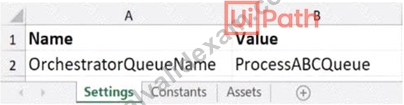
Assuming the default REFramework configuration, how can the developer reference the Setting in the Config variable to obtain the Setting value as a String from the dictionary?
- A. Config ("OrchestratorOueueName"." Process ABCQueue" )ToString
- B. Config ("OrchestratorOueueName ).ToString
- C. Config ("ProcessABCQueue"."OrchestratorQueueName").ToString
- D. Config ("ProcessABCOueue")ToString
Answer: B
NEW QUESTION # 35
How would you define a linear process in UiPath?
- A. The steps of the process repeat multiple times over different data items. However, the automation design is such that each repeatable part processes independently.
- B. The steps of the process refer to the execution of steps in a sequential manner, where each subsequent step depends on the successful completion of the previous step.
- C. The steps of the process are performed multiple times, but each time different data items are used.
- D. The process steps are performed only once. If the need is to process additional data, then the automation must execute again.
Answer: D
Explanation:
A linear process in UiPath is a type of process that is executed only once and does not involve any looping or branching logic. It is suitable for simple scenarios where the input data is fixed and the output is predictable.
A linear process can be designed using a Sequence or a Flowchart diagram, but it does not use any Flow Decision, Switch, While, Do While, or For Each activity. If the process needs to process additional data, then the automation must be executed again with the new data as input. References: Framework for linear process or single transaction, How to modify ReFramework to Linear Process, Workflow Design, Difference between Linear process and Transactional process
NEW QUESTION # 36
What does the Profile Execution tool in UiPath Studio do?
- A. It provides a performance analysis of all the operations, displaying a breakdown of each variable used during the execution of a workflow.
- B. It provides a performance analysis of all the operations, showing you a cumulative percentage of the execution time of each activity even when the workflow is idle.
- C. It provides a performance analysis of all the operations, showing you a cumulative percentage of the execution time of each activity when you run or debug a workflow.
- D. It provides a performance analysis of all the operations, showing you a complete list of exceptions and errors during the execution or debugging of a workflow.
Answer: C
Explanation:
TheProfile Executionfeature in UiPath Studio allows developers toanalyze the performance of workflows. It shows theexecution time of each activityas a cumulative percentage. This feature can be used duringrun or debug modeto optimize performance and detect bottlenecks.
Reference:UiPath Studio Guide > Debugging > Profile Execution
NEW QUESTION # 37
Which one of the following expressions Is the equivalent of the If activity from the picture?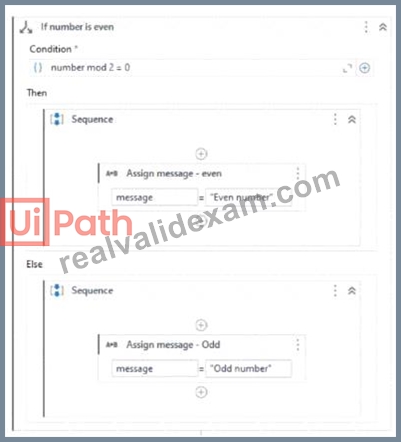
- A. message = lf(number mod 2 = 0. "Even number", "Odd number")
- B. message = lf(number mod 2 = 0 {"Odd number"} else {'Even number"})
- C. message = lf(number mod 2 = 0. Odd number. Even number)
- D. message = lf(number mod 2 = 0 then "Odd number" else "Even number")
Answer: A
Explanation:
This expression evaluates if the number modulo 2 equals 0, which would mean it is even. If true, it assigns the string "Even number" to the variable message. If false (meaning the number is odd), it assigns "Odd number" to message
NEW QUESTION # 38
When developing a process, you were provided with two data tables, "DT1" and "DT2", as shown below: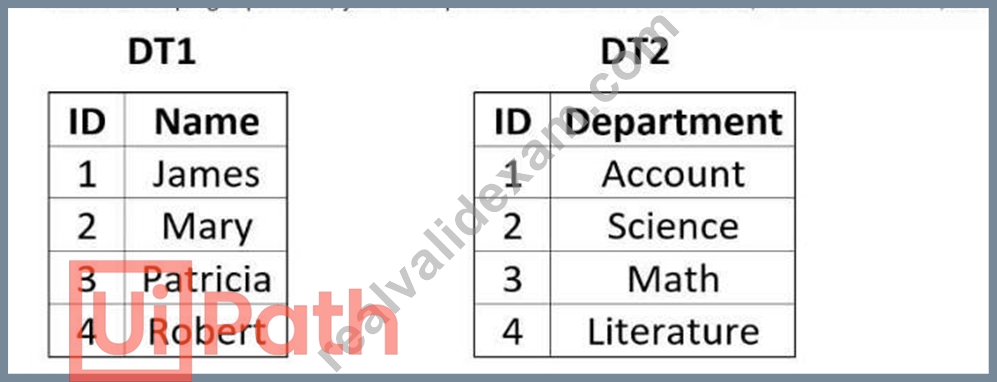
The process documentation specifies that the two data tables need to be manipulated in order to reflect the following "DT2":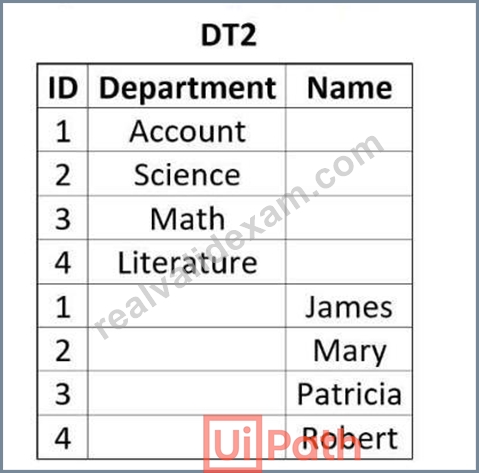
How should the properties of the Merge Data Table activity be configured?
- A.
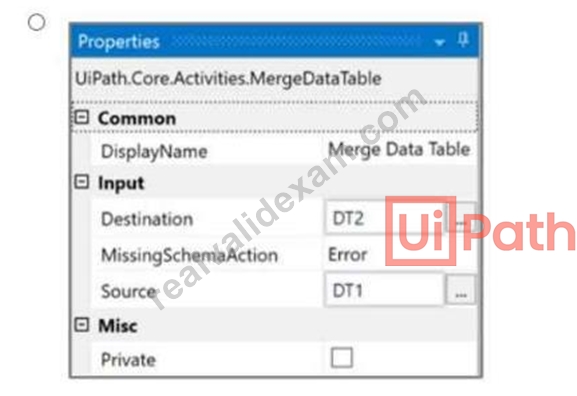
- B.
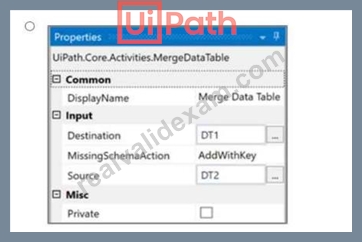
- C.
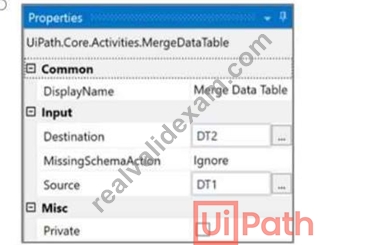
- D.
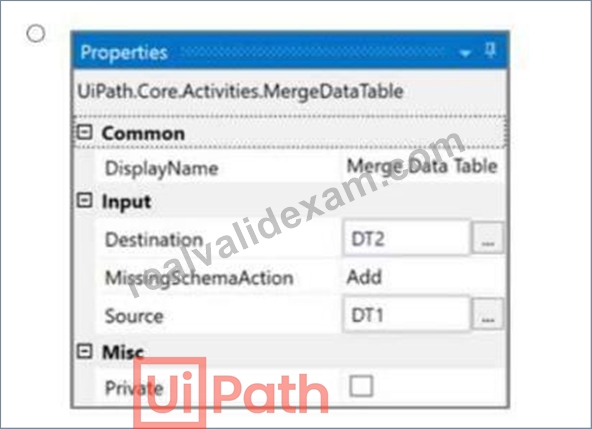
Answer: B
Explanation:
Given the two data tables DT1 and DT2, to achieve the desired result where DT2 contains both the department and the names, the Merge Data Table activity should be configured to merge DT1 into DT2. This configuration requires specifying DT1 as the source table and DT2 as the destination table. The MissingSchemaAction should be set to AddWithKey which ensures that if the source table (DT1) contains columns that are not found in the destination table (DT2), they will be added to the destination table with the primary key information preserved.
Option A shows the correct configuration for the Merge Data Table activity to achieve this result:
* Destination: DT1
* Source: DT2
* MissingSchemaAction: AddWithKey
This setup correctly adds the "Name" column from DT1 to DT2 based on the shared "ID" column, which acts as the key. Since both tables have an "ID" column with matching values, the names will be added to the corresponding IDs in DT2, resulting in a merged table with ID, Department, and Name columns.
NEW QUESTION # 39
What is the purpose of the Interval filter in the Orchestrator's Monitoring page?
- A. It allows you to choose between background and foreground processes for the displayed data.
- B. It allows you to control the granularity of the displayed data and check the health of your system in either the last day or the last hour.
- C. It allows you to allocate licenses per machine for the displayed data.
- D. It enables you to sort the displayed data based on job priorities.
Answer: B
Explanation:
The purpose of the Interval filter in the Orchestrator's Monitoring page is to allow you to control the granularity of the displayed data and check the health of your system in either the last day or the last hour. The Monitoring page provides various metrics and charts that show the status and performance of your robots, processes, queues, and transactions. The Interval filter lets you choose the time frame for the data that you want to see. You can select either the last day or the last hour as the interval. The data will be updated accordingly and show you the trends and changes in your system over the selected period. This can help you identify any issues or anomalies and take corrective actions if needed.
NEW QUESTION # 40
What is the use of job priorities in unattended automations within UiPath Orchestrator?
- A. To create job dependencies that must be completed before new job execution.
- B. To determine which processes should be executed first when dealing with multiple jobs.
- C. To determine machine resource allocation among processes.
- D. To sort and organize tasks within a folder.
Answer: B
Explanation:
The use of job priorities in unattended automations within UiPath Orchestrator is to determine which processes should be executed first when dealing with multiple jobs. Job priorities are values that can be assigned to jobs or triggers when they are created or edited. The possible values are High, Normal, and Low.
Job priorities affect the order in which the jobs are executed by the robots, with higher priority jobs being executed before lower priority jobs. Job priorities can help you to optimize the execution of your unattended automations, especially when you have limited resources or time-sensitive processes. You can also use job priorities to create job dependencies that must be completed before new job execution, by using the Start Job activity with the Wait for completion option and setting the priority of the child job to High. References: [Job Priority], [Start Job]
NEW QUESTION # 41
At indication time, the Strict Selector has the following functionalities available:
- A. Refresh, Open in UiExplorer, Copy to clipboard.
- B. Accuracy, Open in UiExplorer, Copy to clipboard. Show all matches.
- C. Open in UiExplorer, Copy to clipboard, Show all matches.
- D. Ignore text. Copy to clipboard. Show all matches.
Answer: C
Explanation:
The Strict Selector is a targeting method that uses the selector information of a UI element to identify it on the screen. It is one of the four targeting methods available in UiPath Studio, along with Fuzzy Selector, Image, and Computer Vision1. The Strict Selector is considered to be the most reliable and stable targeting method, as it uses the attributes and properties of the UI element that are unlikely to change2.
At indication time, the Strict Selector has the following functionalities available:
* Open in UiExplorer: This option opens the UiPath Explorer window, where you can inspect and edit the selector information of the indicated UI element, as well as use advanced features such as anchors, wildcards, variables, and regex3.
* Copy to clipboard: This option copies the selector information of the indicated UI element to the clipboard, so you can paste it elsewhere, such as in a text editor or another activity.
* Show all matches: This option highlights all the UI elements on the screen that match the selector information of the indicated UI element. This helps you to check if there are any duplicates that might cause the automation to fail at runtime. You can also use the Ignore text option to exclude the text attribute from the selector information, which might reduce the number of matches4.
The other options are incorrect because:
* Option A is incorrect because it does not include the Show all matches option, which is available for the Strict Selector.
* Option B is incorrect because it does not include the Open in UiExplorer option, which is available for the Strict Selector.
* Option D is incorrect because it includes the Accuracy option, which is not available for the Strict Selector. The Accuracy option is only available for the Image targeting method, which allows you to adjust the similarity threshold between the indicated image and the target image5.
References:
* Studio - Targeting Methods - UiPath Documentation Portal
* Studio - Strict Selector - UiPath Documentation Portal
* Studio - UiPath Explorer - UiPath Documentation Portal
* Activities - Advanced descriptor configuration - UiPath Documentation Portal
* Studio - Image - UiPath Documentation Portal
NEW QUESTION # 42
In the context of the REFramework, if the OrchestratorQueueName key is present in both the Settings and Assets sheets, but an asset with the corresponding name is not present in Orchestrator, what will be the behavior at run time?
- A. The flow will throw an exception in InitAllSettings workflow.
- B. An empty string will be saved for the "OrchestratorQueueName" key in the config dictionary.
- C. The "OrchestratorQueueName" key is not added to the config dictionary and the flow will throw in Get Transaction Data workflow.
- D. The flow will use the value from the Settings sheets since the asset is missing.
Answer: A
Explanation:
In the Robotic Enterprise Framework (REFramework) for UiPath, the OrchestratorQueueName key is used to specify the name of the queue from which the robot will process transactions. If the OrchestratorQueueName key is specified in both the Settings sheet and the Assets sheet of the configuration, the REFramework will first attempt to get the value from the Orchestrator asset.
If the asset with the corresponding name to OrchestratorQueueName is not found in Orchestrator, the behavior at runtime would depend on how the REFramework's InitAllSettings.xaml is implemented.
Generally, if an asset is expected but not found in the Orchestrator, an exception is thrown because the asset is typically considered a required component for the process to run correctly.
Therefore, the most likely behavior at runtime would be:
B: The flow will throw an exception in the InitAllSettings workflow.
This would occur because the InitAllSettings workflow contains the logic to load configuration settings and assets, and if an expected asset is not found, an exception is usually thrown to prevent the process from continuing without required configuration.
NEW QUESTION # 43
......
Free UiPath-ADPv1 Exam Braindumps UiPath Pratice Exam: https://www.realvalidexam.com/UiPath-ADPv1-real-exam-dumps.html
Instant Download UiPath-ADPv1 Free Updated Test Dumps: https://drive.google.com/open?id=13J36M7FY0-TTkYeEQdqdbCWJlQB5AUr7
